

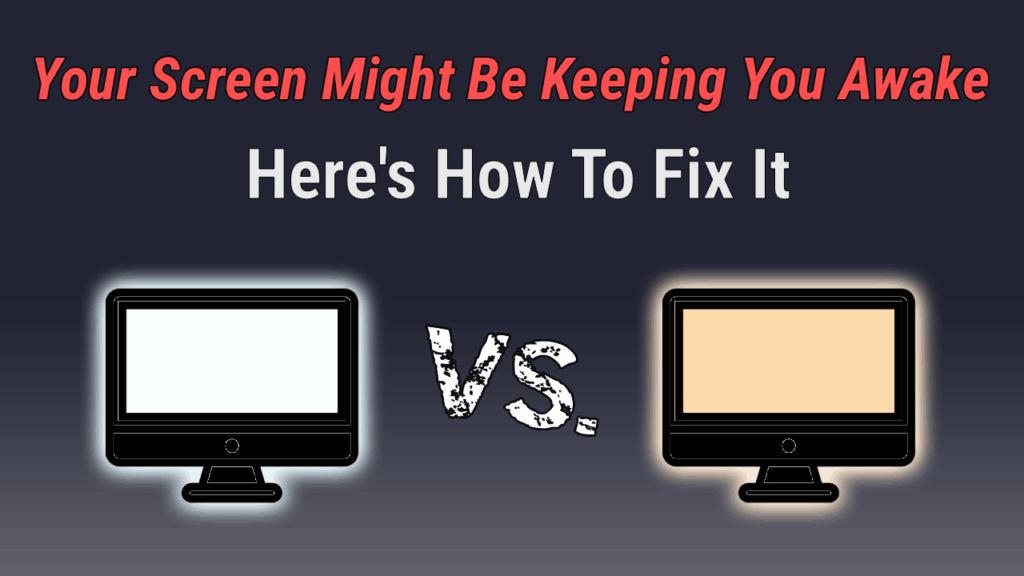
Do you struggle to fall asleep after working or gaming late on your computer? Does it feel like you were just staring at the sun and you’re more awake now than before?
If so, you’re not alone, and the developers at f.lux have set out to help solve this problem by creating an effective, non-invasive, and free software to regulate the “warmth” of your computer screen throughout the day.
F.lux, A.K.A f lux or flux, gradually changes your screen’s color temperature to match the time of day. As the sun sets, it reduces the amount of blue light emitted from your display, shifting your screen from a harsh white light to a softer, orange-toned glow. This simple change by itself can make a big difference in your sleep quality.
It’s like turning off a heavy fluorescent lightbulb and lighting a couple candles instead. It just feels more natural while still letting you work or play. And your eyes will thank you over time.
I’ve personally installed f.lux on every gaming or work computer that I own. It has no discernable impact on my FPS in-game or desktop performance, and actually makes late-night screentime feel more relaxing. As a result, it’s forever near the top of my list of “must install” free software for every new computer. Right after Steam, of course.
Considering that it’s been free for more than a decade now and a good sleep schedule is crucial for both your well-being and productivity, I stand by my next statement:
If you’re not using f.lux for your computer screen, you’re missing one of the best pieces of free software on PC.
How to install f.lux:
The f.lux website is easy to navigate and even includes a page detailing their research and science behind the software. It’s worth noting that f.lux is most easily installed and used on Microsoft Windows PCs. If you’re on Linux, there’s still a link to a f.lux GUI along with installation instructions, but I won’t go into here that since I currently use Windows. On Mac, Apple has already introduced the Night Shift feature which similarly allows you to adjust screen temperature to better suit the time of day. However, I’ve had it on multiple versions of Windows and installation is always a breeze. To get started, click here to open a link to their website and follow along.
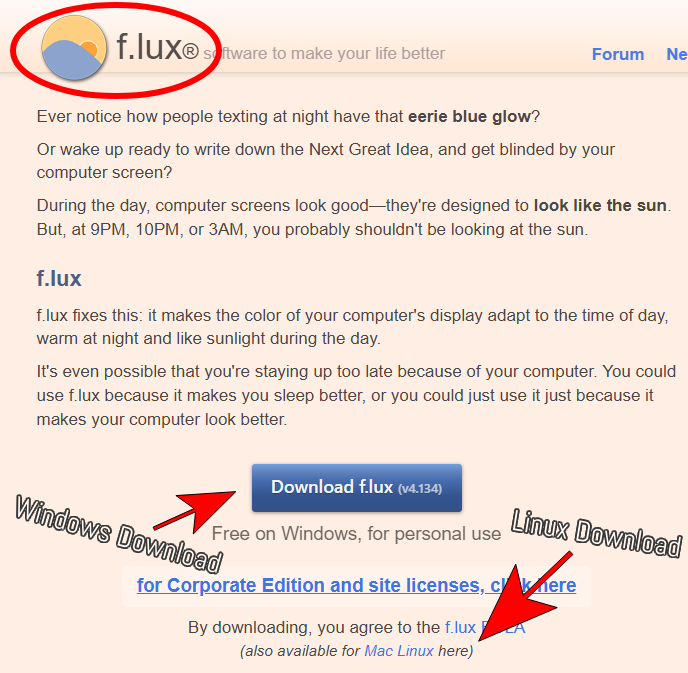
Pro tip: Version 4 (v4) runs much smoother and has more features than version 3 (v3).
After clicking the central blue button, it should’ve automatically started a download for the setup wizard. Once it’s finished downloading, double click it in the downloads tab of your browser and it should pop up with a “save as” window like pictured below.
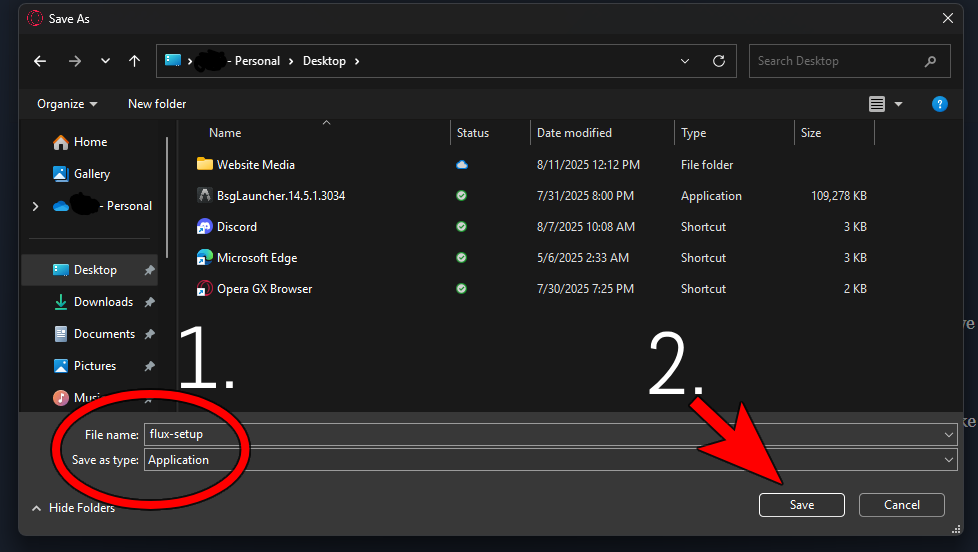
In this screenshot, I saved it to my “Desktop” to make it easier for myself. Another good location is the “Downloads” folder listed right below it.
After clicking save, it should automatically start and pop up a license agreement in a small program window. Feel free to read and accept the agreement, allow it to make changes to your computer, and optionally provide your zip or postal code. To finalize your installation, restart your computer now or whenever is convenient.
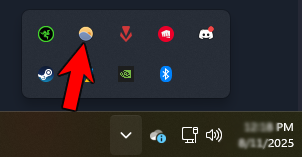
How To Use f.lux:
In terms of how to use f.lux, I personally prefer it as a pretty hands-off experience. Once I input my time-zone and ideal sleep schedule, the program automatically adjusts the temperature of my screen to be less harsh as the day goes on. At first, I would constantly change the color manually because I wasn’t used to the much warmer tones. However, after a short adjustment period, I now trust the app to change the display for me instead.
More Features:
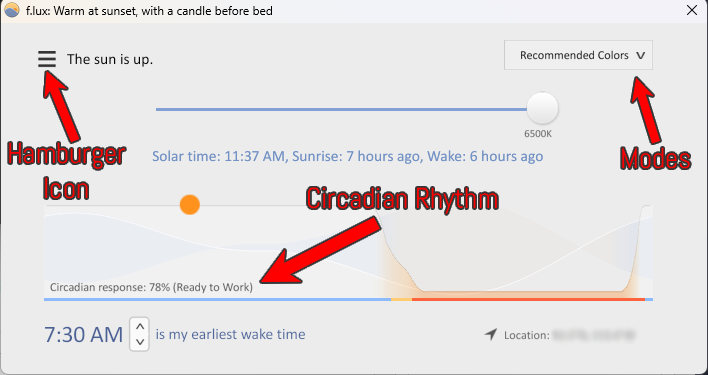
- Manual Control: Opening the hamburger icon in the top left and selecting either “change current color” or “Effects and extra colors” allows you to manually select a setting.
- Modes/Presets: Can switch from “recommended colors” to different presets based on your liking.
- Hotkeys: Adjust color with Alt+Shift+PgUp and Alt+Shift+PgDn
- App-specific: Can disable f.lux for specific apps. (e.g. games or browsers)
- Circadian Prediction: Estimates how awake and productive you will be at certain times of the day.
Hopefully, I’ve introduced you to something you didn’t know you needed, but are now glad to have. If you need further clarification or if I’ve missed anything, let me know with a comment below!